
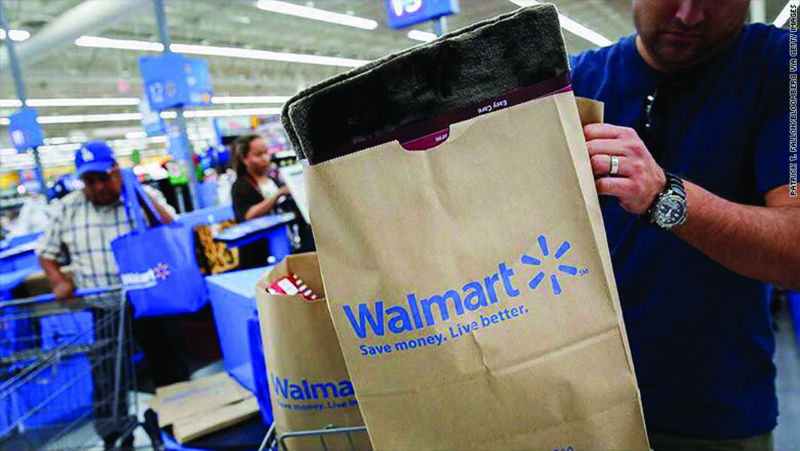
Google Pay is finally coming to Walmart, giving millions of U.S. shoppers another way to pay at checkout with a smartphone, smartwatch or contactless card.
Starting Aug. 24, Walmart and Sam’s Club began introducing Tap to Pay at select U.S. locations. Walmart said the feature will expand to all U.S. stores and clubs by the end of 2026, while its fuel stations are scheduled to receive the capability by mid-2027.
The move represents a significant change for Walmart, which for years emphasized its own Walmart Pay system rather than standard NFC-based mobile wallets. The retailer will now accept contactless payment methods alongside cash, credit cards and Walmart Pay. Sam’s Club also offers Scan & Go, which allows members to scan products and pay through the app without using a traditional checkout.
How Google Pay will work at Walmart
For shoppers, the process is straightforward.
An eligible debit or credit card can be added to Google Wallet. At a participating Walmart checkout, the customer can then authenticate the payment on a compatible Android phone or smartwatch and hold the device near the contactless payment terminal.
Google says eligible cards receive a device-specific virtual account number, known as a device token. The token replaces the customer’s actual card number during a transaction, meaning the physical card number is not shared with the merchant.
That distinction is important because a digital wallet is not simply storing a photograph or copy of the physical card. Tokenization creates a separate payment credential associated with the device and underlying card account.
Google also says payments are encrypted and that Google Pay has built-in systems designed to identify suspicious transactions.
Walmart said customers will also be able to add eligible Walmart, Sam’s Club and OnePay cards to digital wallets.
What vulnerabilities can expose customers?
Tap-to-pay technology reduces some risks associated with exposing a physical card number, but it does not eliminate payment fraud.
One major threat is account or device compromise. A smartphone increasingly functions as a gateway to banking, email, authentication codes and payment accounts. If a phone is stolen and inadequately protected, an attacker may gain access to much more than a payment card. The Federal Trade Commission recommends using a strong device lock, keeping software updated and having a way to locate or remotely secure a lost phone.
Another risk is phishing and social engineering. A criminal may impersonate a bank, payment company or other trusted organization and persuade a consumer to reveal credentials, install malicious software or authorize a transaction. The FTC reported that consumers lost a record $3.5 billion to imposter scams in 2025.
There is also a more sophisticated NFC-related threat known as relay fraud. Visa has warned about schemes in which criminals use malicious applications and NFC technology to relay payment information from a victim’s device or card to another device controlled by the attacker. In one documented scenario, scammers impersonate bank employees and persuade victims to install a malicious application and tap their card against the phone.
Digital wallets can therefore make the payment credential itself harder to steal while leaving other attack surfaces — the phone, account credentials, applications and the consumer — exposed to fraud attempts.
The broader fraud problem is substantial. In the Federal Reserve’s 2025 household survey, 20% of U.S. adults said they had experienced financial fraud or scams. Sixteen percent reported credit-card-related fraud, while non-credit-card fraud losses were estimated at $100 billion in 2025, with consumers bearing $56 billion directly.
What are the most popular payment methods in the U.S.?
Despite the rapid growth of digital wallets, Americans have not abandoned traditional payment methods.
The Federal Reserve’s latest payments research shows that cards remain the dominant form of noncash payment. In 2024, cards accounted for more than three-quarters of noncash payments by number, with debit cards still representing the majority of card payments.
The Federal Reserve’s Diary of Consumer Payment Choice provides another measure of everyday use. Among U.S. adults, 83% reported using cash during the previous month, 72% used a credit card and 67% used a debit card. Because consumers can use more than one payment method, these figures are not mutually exclusive.
For retail purchases specifically, the Federal Reserve has found that credit cards and debit cards are the leading methods. Its 2024 consumer-payment research estimated that credit cards represented about 32% of payments, debit cards about 30% and cash about 16%.
Digital wallets and peer-to-peer services occupy a different part of the payments market. They include Apple Pay, Google Pay, PayPal, Venmo, Cash App and Zelle, among others. The Federal Reserve notes that use of digital wallets and P2P payment applications has been growing, although cards remain the dominant funding source for digital wallets and payment apps.
The distinction matters: a consumer might use Apple Pay or Google Pay at a store, but the underlying transaction may still be funded by a credit or debit card.
Google Pay vs. Walmart Pay
Walmart’s decision to accept Google Pay does not mean Walmart Pay is disappearing.
Walmart Pay remains available through the Walmart app, where customers can pay, view purchases and receipts, and access Walmart+ fuel savings. The company is effectively adding standard contactless payments to its existing ecosystem rather than replacing its proprietary wallet.
For consumers, the practical difference is convenience.
Google Wallet lets Android users keep payment cards in a wallet that can also be used at thousands of other participating merchants. Walmart Pay is tied more closely to the Walmart shopping experience and its app.
The arrival of Google Pay also puts Walmart closer to the payment experience already familiar to shoppers at many other major U.S. retailers.
What shoppers need to use Google Pay at Walmart
To use Google Pay for contactless purchases, shoppers generally need:
- An Android phone or compatible smartwatch with NFC.
- A supported debit or credit card.
- Google Wallet set up on the device.
- A supported screen lock and a device that meets Google’s security requirements.
- A Walmart location equipped for Tap to Pay.
Google says rooted phones, devices with unlocked bootloaders, custom ROMs or uncertified software may not meet its security requirements for contactless payments.
Adding a card requires opening Google Wallet, selecting Add to Wallet, choosing Payment card, and following the verification process. Eligible cards may receive a virtual card or device token automatically.
Why Walmart’s move matters
Walmart’s rollout comes as U.S. consumers increasingly expect retailers to accept the payment technology already built into their phones.
The Federal Reserve’s 2026 payments study found that noncash payments continue to expand, with 236.6 billion noncash payments made by consumers and businesses in 2024. Cards accounted for more than three-quarters of those transactions by number.
Walmart’s new policy gives shoppers more choice without requiring them to switch banks, obtain a new card or learn a separate checkout system.
For Android users, the change is particularly notable: a phone that already functions as a digital wallet can now be used at one of the largest retail chains in the United States.
The rollout will initially be limited to selected Walmart and Sam’s Club locations, with Walmart targeting nationwide coverage by the end of 2026. Fuel stations are expected to follow by mid-2027.
The convenience comes with the same basic security responsibilities that accompany any digital financial service: protect the device, use strong authentication, install software updates, scrutinize unexpected messages and never give payment credentials to someone claiming to represent a bank or payment provider. The FTC continues to warn that scammers increasingly use impersonation and social engineering to gain access to consumers’ money.
Important: To add a card for contactless payments, you should be in a country or region that supports tap to pay. You must also have a supported debit or credit card.
To pay in stores with your phone or smartwatch, you need to add a card to Google Wallet.
Add a card with the Google Wallet app
-
Open the Google Wallet app image.
-
At the bottom, tap Add to Wallet image.
-
Tap Payment card and then New credit or debit card.
-
To add a card, use your camera or tap Enter details manually.
-
At the bottom, tap Save and continue.
-
Read the Issuer Terms.
-
Tap Accept.
-
If you’re asked to verify your payment method, choose an option from the list. Learn how to verify your payment method.
Tip: For eligible cards, a virtual card is automatically created when you successfully add a card. Learn more about virtual cards.
Important: To add a card for contactless payments, you should be in a country or region that supports tap to pay. You must also have a supported debit or credit card.
To pay in stores with your phone or smartwatch, you need to add a card to Google Wallet.
Add a card with the Google Wallet app
-
Open the Google Wallet app image.
-
At the bottom, tap Add to Wallet image.
-
Tap Payment card and then New credit or debit card.
-
To add a card, use your camera or tap Enter details manually.
-
At the bottom, tap Save and continue.
-
Read the Issuer Terms.
-
Tap Accept.
-
If you’re asked to verify your payment method, choose an option from the list. Learn how to verify your payment method.
Tip: For eligible cards, a virtual card is automatically created when you successfully add a card. Learn more about virtual cards.
Add a card from your bank’s app or website
-
Open your mobile banking app or go to your bank’s website.
-
Log in to your account.
-
Tap Add to GPay.
-
Follow the on-screen instructions.
If you can’t find the “Add to GPay” button, your card or financial institution may not support this feature. For more details, contact your bank.
Fix issues with adding a debit or credit card
Error: “Couldn’t finish card setup for tap to pay”
This error indicates that the issuing bank has declined the request to add your card to Google Wallet. This is a standard security measure utilized by financial institutions to protect your account.
To resolve this issue, please contact your card issuer directly. Inform the customer support representative that you are attempting to add your card to Google Wallet for Tap to Pay and request that they authorize the addition.
Tip: Before contacting your bank, verify your details. Ensure that the name, CVC, and billing address you entered in Google Wallet match the information on file with your bank exactly. Mismatched information is a common reason for failed contactless setup.
Alternatively, you may attempt to add the card directly through your mobile banking application or the bank’s website. Many institutions provide an ‘Add to GPay’ option within the card details, which may facilitate the process without requiring manual support assistance
If you encounter this error while adding multiple cards, you may need to contact each financial institution individually, as every tokenization request is processed separately by the respective issuer. Please note that the final decision to approve a card for Google Wallet rests solely with the card issuer’s security systems. Google facilitates the secure connection to your bank but cannot override an issuer’s decision to decline a request. If a representative advises you to contact Google, please clarify that you are seeking authorization for a digital wallet provisioning request.
You can also try again later or use a different supported payment method. Learn how to find supported payment methods.
Error: “Card can’t be set up for tap and pay”
If you can’t set up your card for tap and pay, check if your bank and card support payments with Google Wallet. Learn how to find supported payment methods.
-
If your card is supported, try again later or try a different debit or credit card.
-
If your card can’t be set up for tap and pay, but it’s saved to your Google Wallet, you can still use it to:
-
Purchase Google products and services.
-
Pay on an app or website that offers Google Pay as a payment method or has a “Buy with GPay” button at checkout.
-
Tip: Your physical card’s support for contactless payments does not guarantee compatibility with Google Wallet. Your bank and card must explicitly support contactless payments via Google Wallet. To verify your card’s compatibility, see Find supported payment methods.”
Error: “Phone can’t be set up for tap and pay”
You may receive this message if:
-
Your phone doesn’t have NFC technology: To make contactless payments, check if your phone supports NFC.
-
Your phone doesn’t meet the security standards for contactless payments, such as:
Error: “Card isn’t ready to pay online”
If you get this message, your card can’t be used for web or in-app purchases. If you’re in a country or region that supports contactless payments, you may be able to use the card to tap and pay in store.
Learn where you can use Google Wallet.
Error: “Added too many cards to your Wallet”
You can store multiple payment cards on your device, but there’s a maximum limit. Remove unused cards or add the card through your bank’s app and try again.
Cards disappeared in the Google Wallet app, or you were notified that your cards were deleted
Your cards may be removed from Google Wallet as a security precaution. Check if you:
-
Turned off screen lock or changed to a screen lock that Google Wallet doesn’t support, like Smart Unlock or Knock to Unlock. Learn more about screen lock.
-
Haven’t opened the Google Wallet app in 90 days or more.
-
Factory reset, remotely wiped, or locked your device. Learn more about how to restore your wallet.
-
Cleared all data from Google Play services or Google Wallet in your phone’s settings.
-
Removed your Google Account from your phone.
-
Use Dual apps functionality on your device. The Dual apps feature isn’t compatible with Google Wallet, to turn it off:
You may need to re-add any removed cards to Google Wallet.